Using the Schedule View Overview
The Schedule Overview allows you to view both your class schedule and appointments from a single calendar. This centralized view makes it easy to monitor upcoming events, manage schedules, and quickly access classes and appointments that need to be updated.
Accessing the Schedule Overview
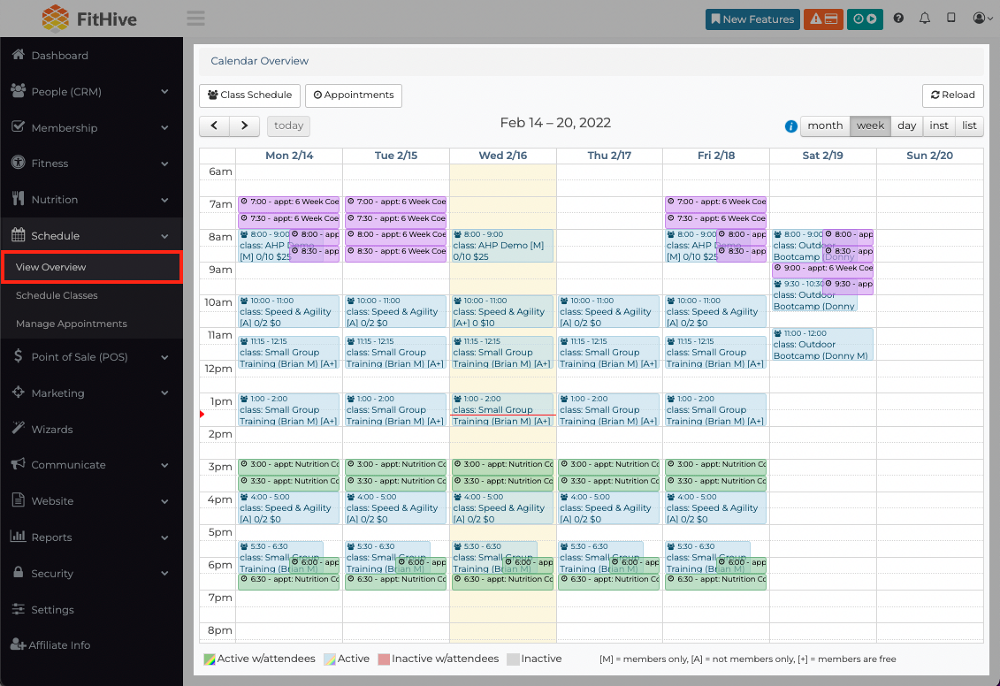
From your admin dashboard, navigate to:
Schedule > View Overview
The Schedule Overview will open and display your classes and appointments on a calendar.
Viewing Your Schedule
The Schedule Overview combines your class schedule and appointments into a single calendar view.
By default, the calendar opens in Week View. To move between weeks, use the left and right arrow buttons located above the calendar.
Changing Calendar Views
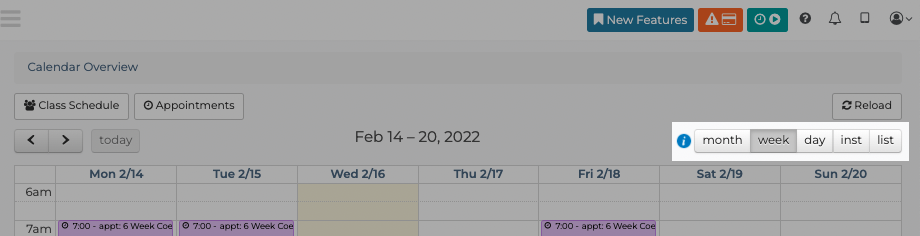
You can customize how your schedule is displayed by selecting one of the available view options:
-
Month View
-
Week View
-
Day View
-
Instructor View
-
List View
-
Calendar View
These options allow you to view your schedule in the format that works best for your business.
Adding Classes and Appointments
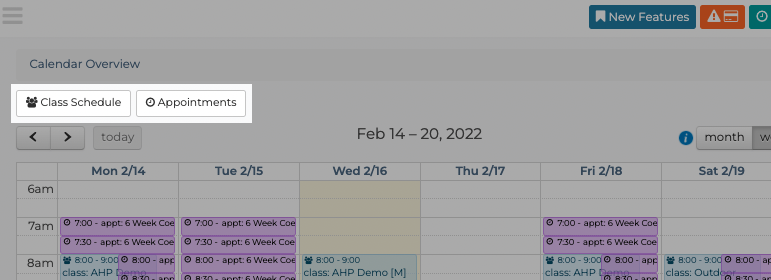
Please note that you cannot add events from the overview page. Classes and Appointments can only be added to their respective schedules, which is why we added shortcuts to both to the schedule overview. TO provide quick access to create new events.
To add a class:
-
Click Class Schedule.
-
Complete the class details.
-
Save your changes.
To add an appointment:
-
Click Appointments.
-
Enter the appointment information.
-
Save your changes.
Editing Classes and Appointments
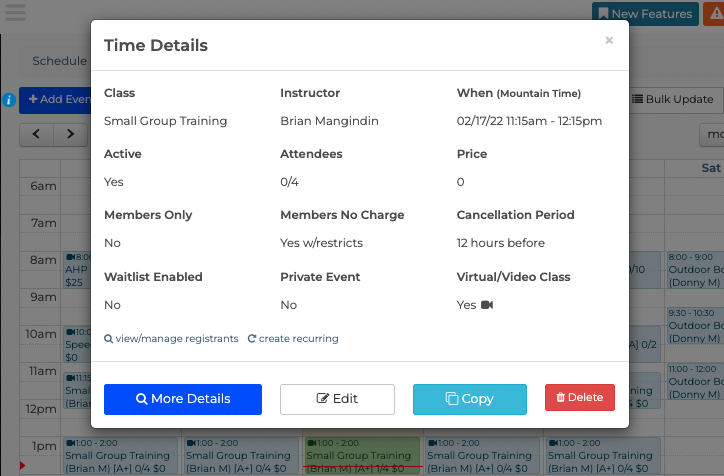
To edit an existing class or appointment:
-
Locate the event on the calendar.
-
Click the class or appointment you would like to edit.
-
Update the information as needed.
-
Save your changes.
Related Articles
If you have any questions, please contact us at success@myfithive.com.
Category > Section:Navigating Your Hive >Schedule