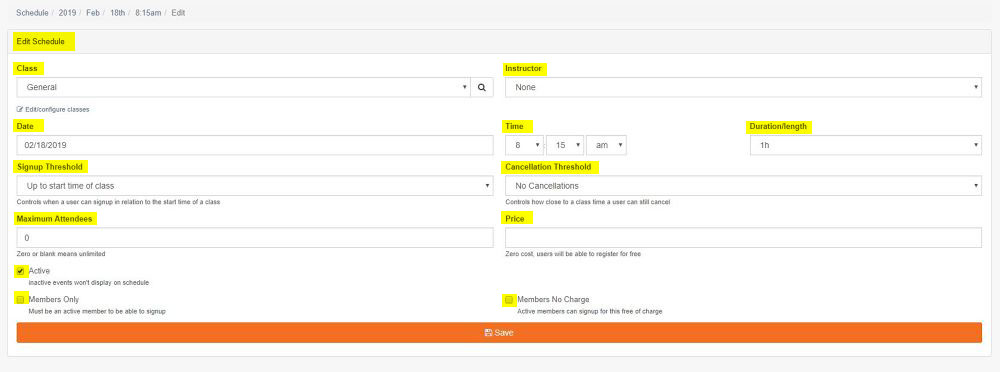
To view or edit a classes settings:
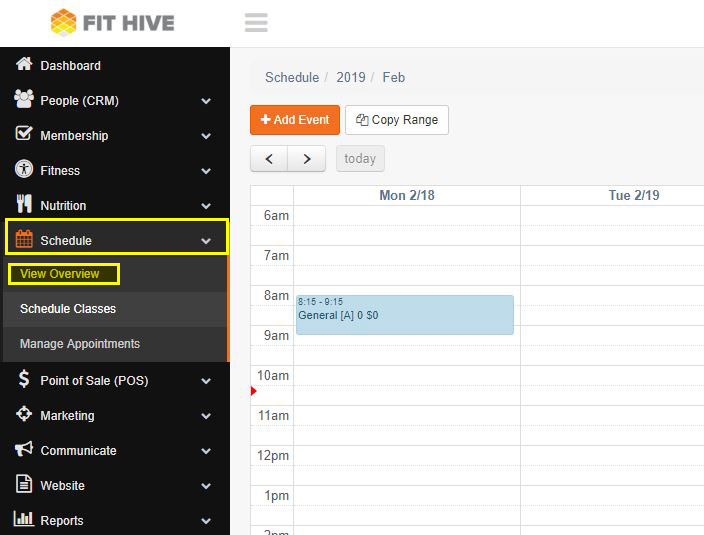
Step 1 - Click Schedule
Step 2 - Click View Overview
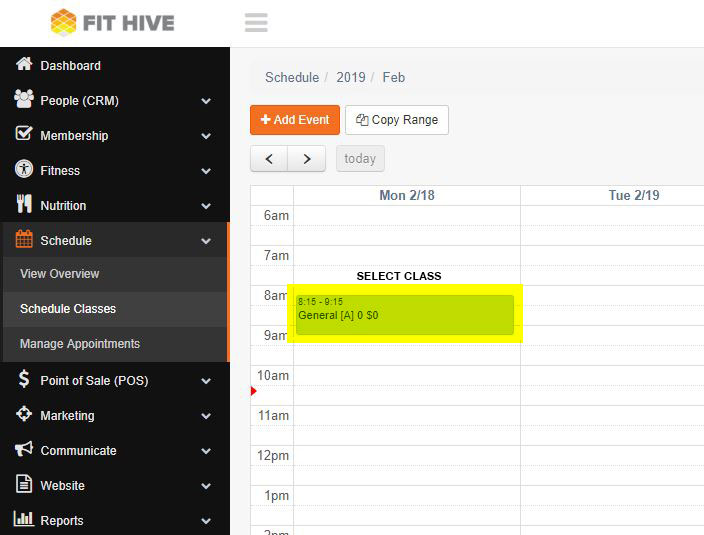
Step 3 - Select the class you would like to view settings for by double-clicking it on the schedule.
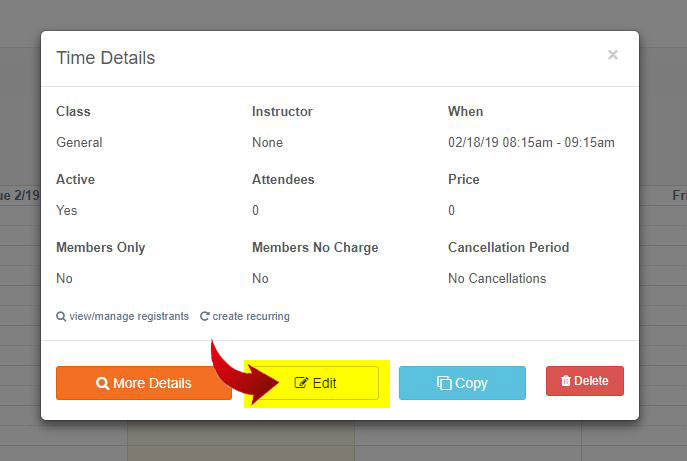
Step 4 - Click Edit
Class - Allows you to select the class type being offered
Instructor - Selects the individual instructing the class
Date/Time - Day and time when the class will take place
Duration/length - How long the class will be
Signup Threshold - The cut-off time for when clients will be able to schedule themselves into the class
Cancellation Threshold - How close to the class time a client is able to remove themselves from the class
Maximum Attendees - The maximum amount of clients allowed into the class (leaving the value "0" will set no class limit)
Price - Cost of the class to non-members (leaving the value at "0' will make the class available for free)
Active - Checking the box means the event will display on your public schedule
Members Only - Checking this box means that only customers with an active membership can enroll
Members No Charge - Checking this box allows active members to signup for the class for free